
Set it up in seven steps
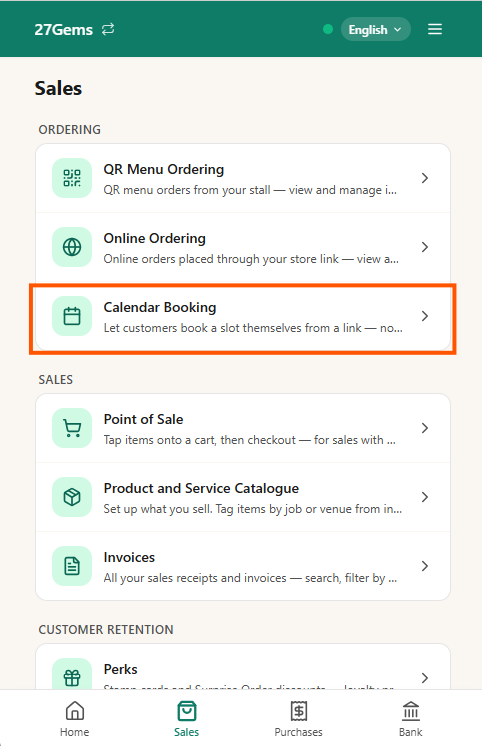
1. Open Calendar Booking
From the bottom nav, tap Sales. Under Ordering, tap Calendar Booking.
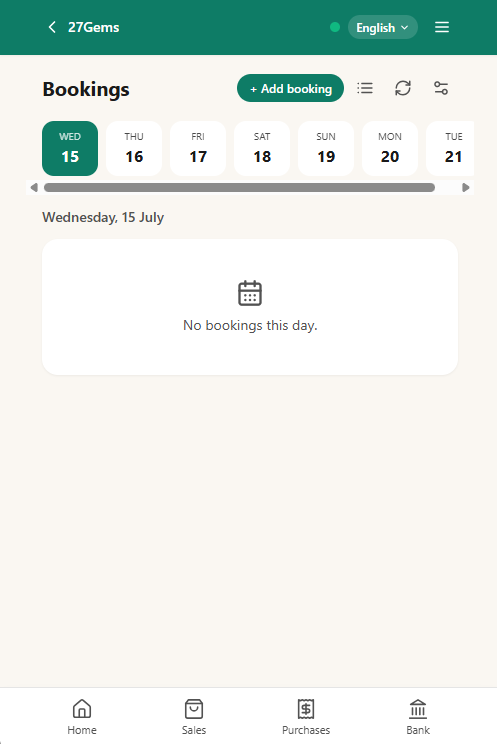
2. This is your calendar
A day-by-day strip across the top, bookings for that day below. Swipe to move between days.
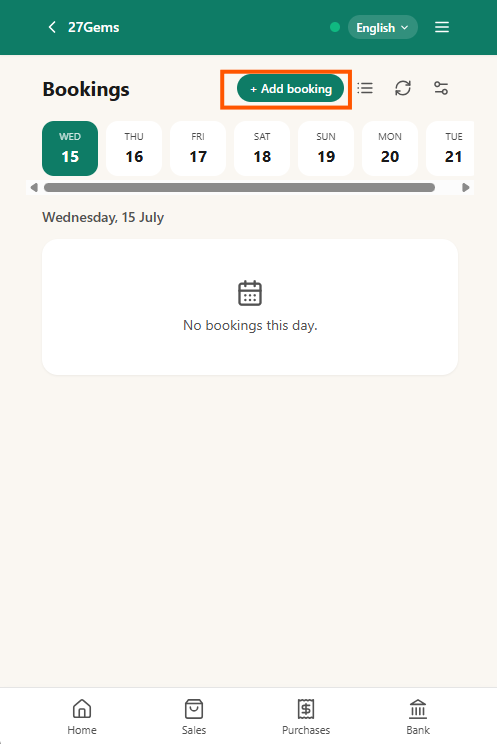
3. Log a booking yourself
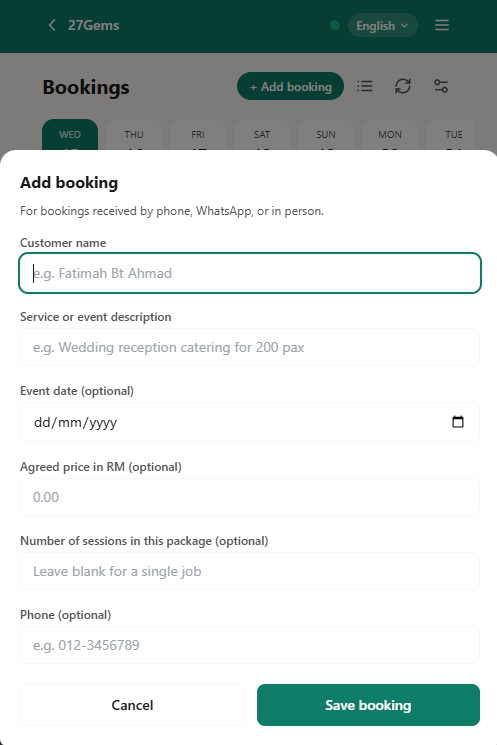
Someone books by phone, WhatsApp, or in person? Tap + Add booking and note it down — customer name, what for, and the price you agreed.
4. Turn on online booking
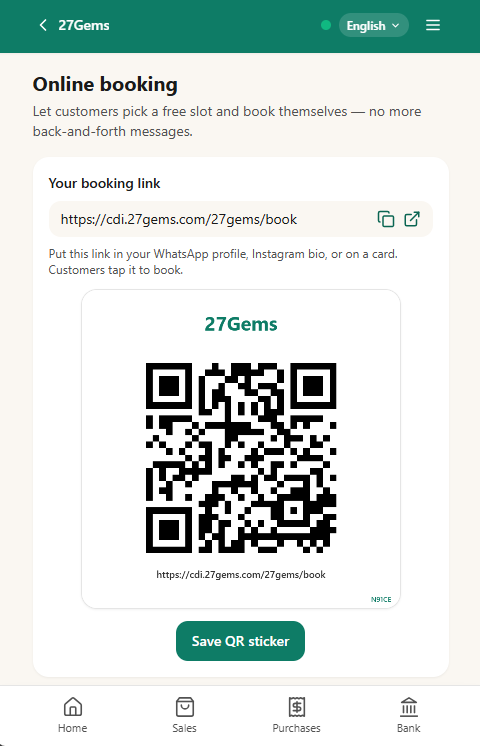
Tap the settings icon at the top of the calendar. You'll get a link and a QR code — put it in your WhatsApp profile, Instagram bio, or on a card. Customers tap it to book.
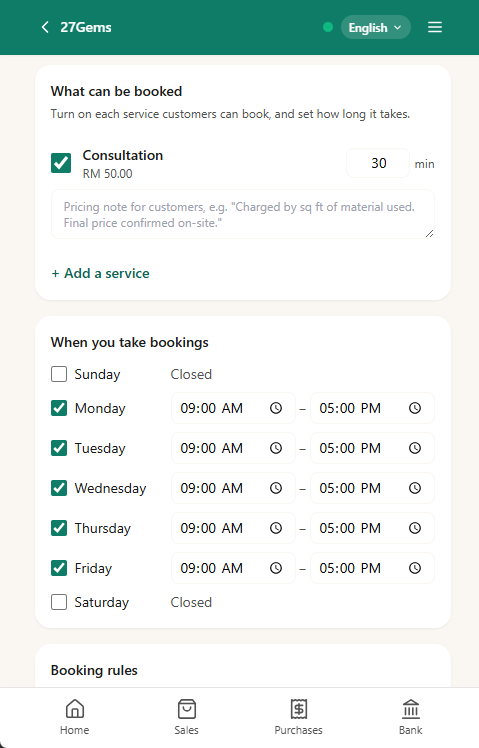
5. Say what can be booked, and when
Turn on each service customers can book and how long it takes. Then set the days and hours you actually take bookings.
6. Set your booking rules
How long each slot runs, prep time between bookings, how far ahead customers can book, and whether you want to approve each request yourself before it's confirmed.
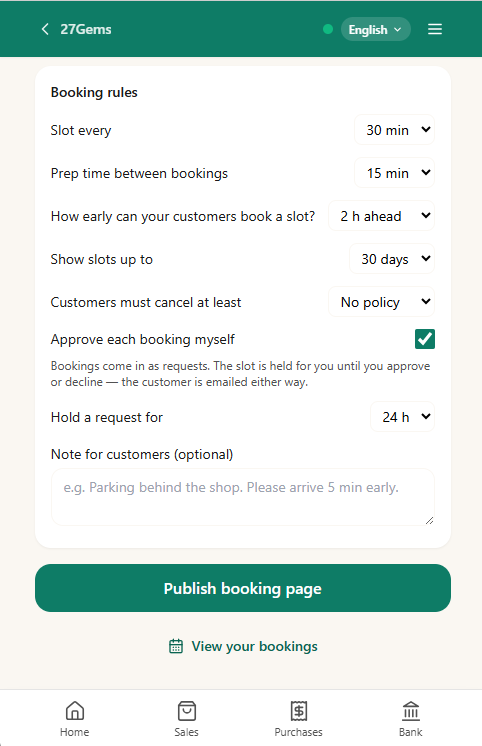
Happy with it? Tap Publish booking page and your link goes live.
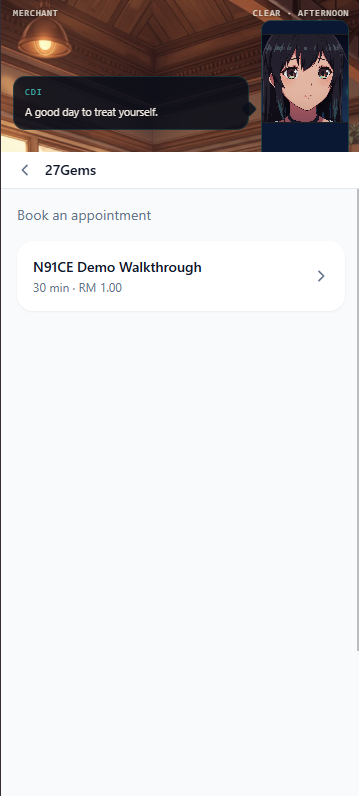
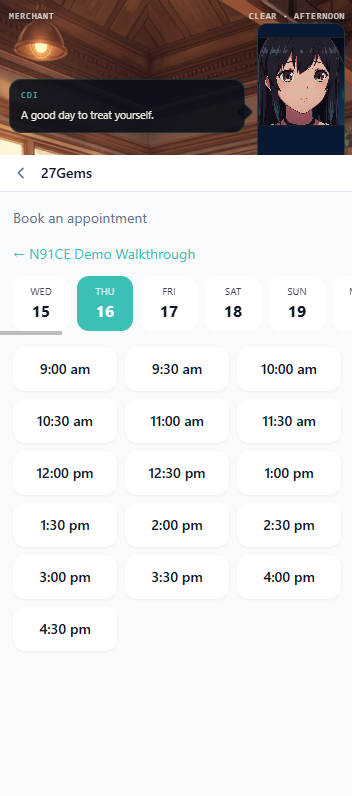
7. What your customer sees
They tap your link, pick what they want, then pick a free slot. No account, no app to download, no messaging you to ask if you're free.
Notes
Every booking lands on your calendar. Whether a customer books online or you log one yourself, it all shows up in the same place.
Cancellation policy is yours to set. In Booking rules, "Customers must cancel at least" lets you require notice before a booking is cancelled — set it to whatever notice you need, or leave it as "No policy".
Booking is about the time slot. How you get paid — cash, transfer, invoice — stays whatever it already is. The Agreed price field just keeps a record; it doesn't collect payment.
Approval is optional. Leave Approve each booking myself on and nothing's confirmed until you say so — the customer's slot is held, and they're emailed either way. Some sellers use that hold to confirm a deposit's been paid before approving. Turn it off and bookings confirm themselves.
If N91CE looks out of date. Open More and tap "Not seeing the latest version? Tap to refresh" near the bottom. Still stuck? Hard-refresh your browser — Ctrl+Shift+R (Windows/Linux) or Cmd+Shift+R (Mac) — or on phone, close the tab or app fully and reopen it.
Already using N91CE? Open Sales → Calendar Booking and set yours up — it takes a few minutes.
New to N91CE? Start free, or read more about what N91CE does.